Add The KARC icon to your
Favourites/Bookmarks
You can very easily add the KARC icon to your Favorites/Bookmarks instead of the
default browser icon. The KARC icon is a small graphic of our logo shown at
the top of the page.
If you are familiar with changing bookmark icons, you can skip the tutorial
below. If not download the icon file and read through the tutorial. You
can save this file for viewing offline by clicking on 'File' 'Save As'.
First you will need to download the icon file and save it to your hard drive.
Save the file to 'My Documents'; a folder called 'Icons'; or a folder of
your choice.
 Right-click
here to download the karc.ico file. (filesize 7.18 KB)
Right-click
here to download the karc.ico file. (filesize 7.18 KB)
(select 'Save Target As' for Explorer or 'Save Link As' for Netscape)
KARC icon file created by CJ 'Chip' Chapman, VA3KGB, and is made freely
available for use in your bookmark files.
HOW TO CHANGE A BOOKMARK ICON
For the tutorial shown below it is assumed that you have saved the file to the 'C:\Icons'
folder, and are using Internet Explorer, although Netscape should be similar.
Now that you have the icon file on your hard drive, it is quite easy to change
the default icon to the KARC icon.
Open Internet explorer and click on 'Favorites'. Move your mouse to
highlight the bookmark for the 'Kingston Amateur Radio Club'
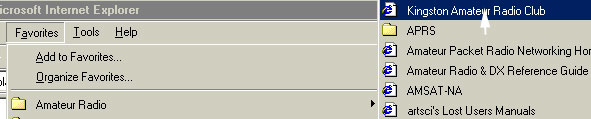
Right-click on 'Kingston Amateur Radio Club'
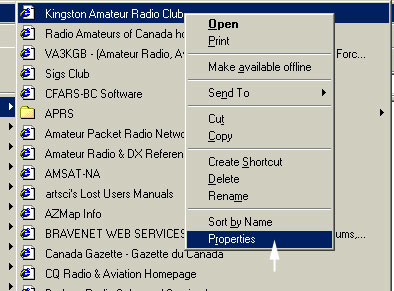
Click on 'Properties'

Click on 'Change Icon'
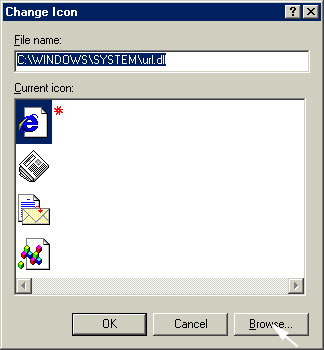
Click on 'Browse' and find the 'karc.ico' file, in our example it is on the 'C'
drive in the 'Icons' folder.

Highlight the filename 'karc.ico' and then click on 'Open'

The KARC icon will be highlighted and the filename will show as 'C:\Icons\karc.ico'. If you have selected the correct icon then
click on 'OK' otherwise click on 'Browse' to find your icon file.
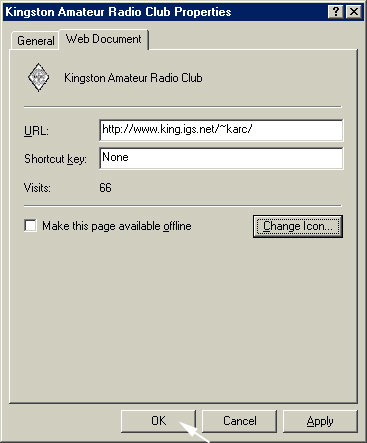
The KARC icon will show next to Kingston Amateur Radio Club.
Click on 'OK' to apply the icon to the bookmark.
The icon may not show in the Favorites/Bookmarks list until you close the
browser down and reopen it. When you next look at the Favorites/Bookmarks you will see
the KARC icon instead of the web page icon.
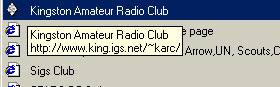
That's all there is to it, you can apply this method to add icons of your choice
to any bookmark
To top of this page